Real views from the app. Select the markers in the picture to read what an area is for.
Step 1 of 6
Use the arrow keys to change step, Tab to move through the markers and Esc to close an explanation.
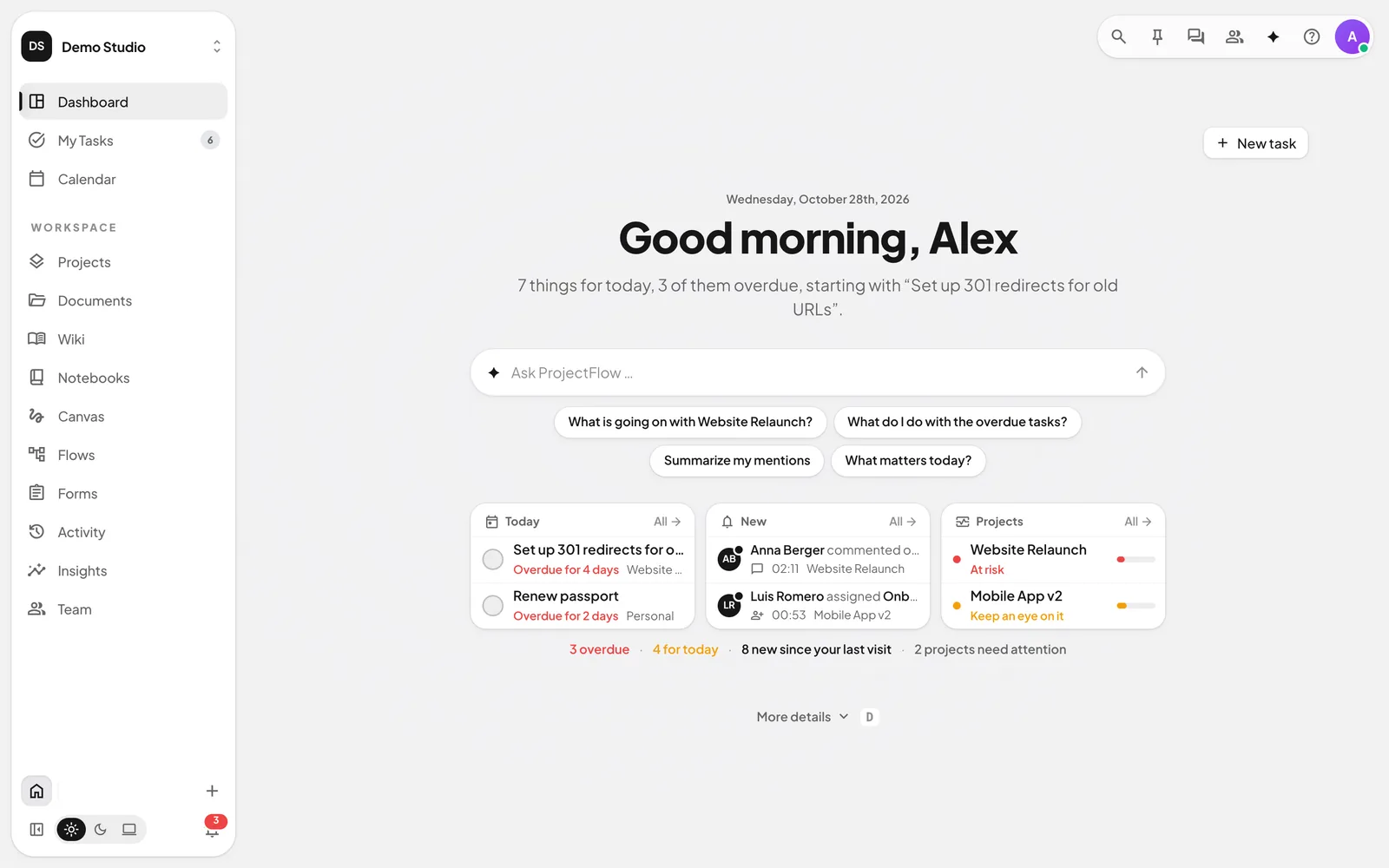
1Dashboard
Ask ProjectFlow
Ask about your tasks, projects and mentions in plain language; the answer is based on your workspace data and is saved as a conversation.
Suggested questions
One-click starters such as "What matters today?" so you do not have to type.
Today
Your overdue and due-today tasks. Tick one off right here or move it to tomorrow.
Projects
Your active projects with their health, so you see which ones need attention first.
What you see in this view
Ask ProjectFlow Ask about your tasks, projects and mentions in plain language; the answer is based on your workspace data and is saved as a conversation.
Suggested questions One-click starters such as "What matters today?" so you do not have to type.
Today Your overdue and due-today tasks. Tick one off right here or move it to tomorrow.
Projects Your active projects with their health, so you see which ones need attention first.
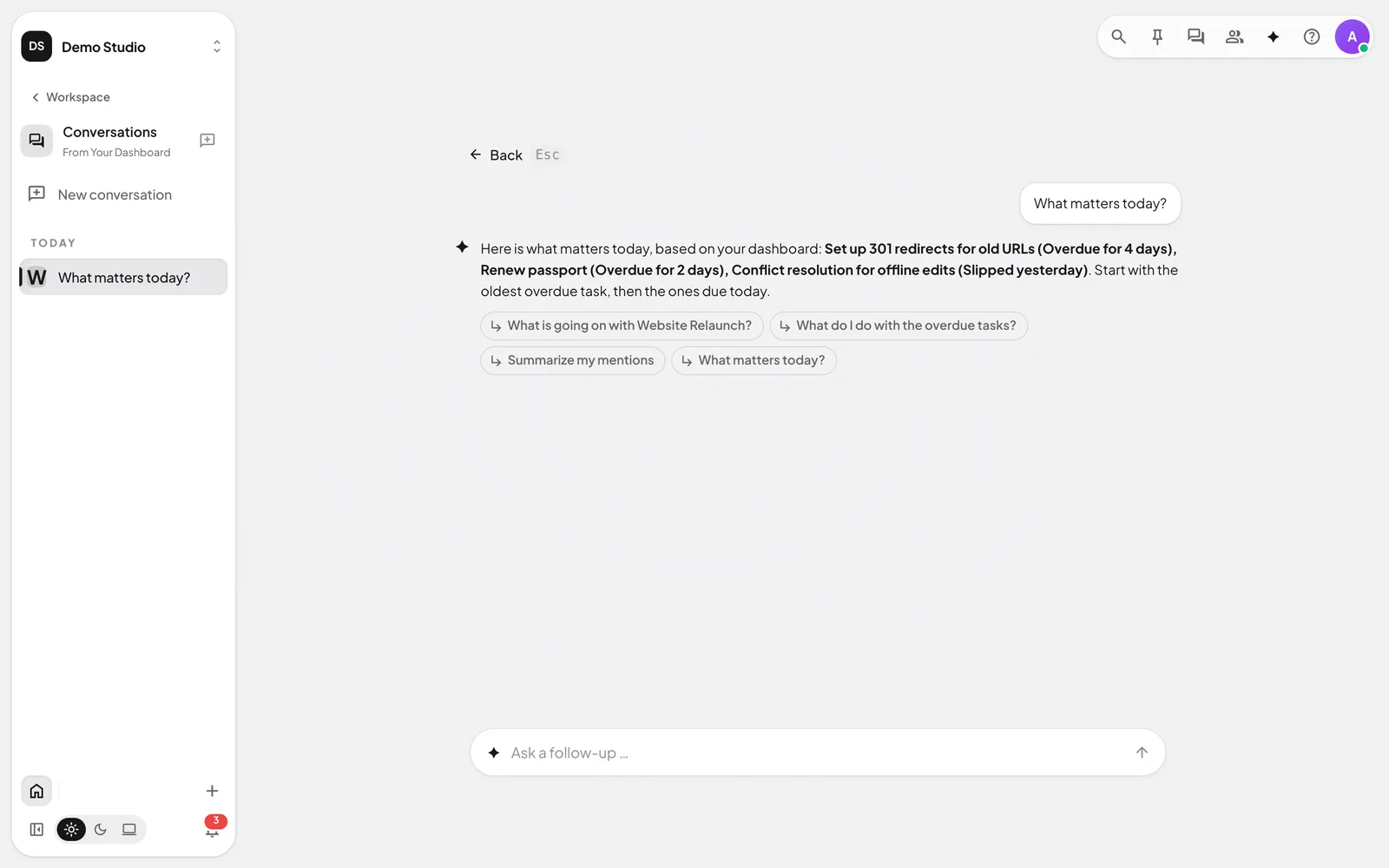
2Dashboard ai
AI answer
The assistant answers from your dashboard and workspace context.
Follow-up
Keep asking in the same conversation.
Conversations
Past dashboard conversations are listed here and can be reopened.
What you see in this view
AI answer The assistant answers from your dashboard and workspace context.
Follow-up Keep asking in the same conversation.
Conversations Past dashboard conversations are listed here and can be reopened.
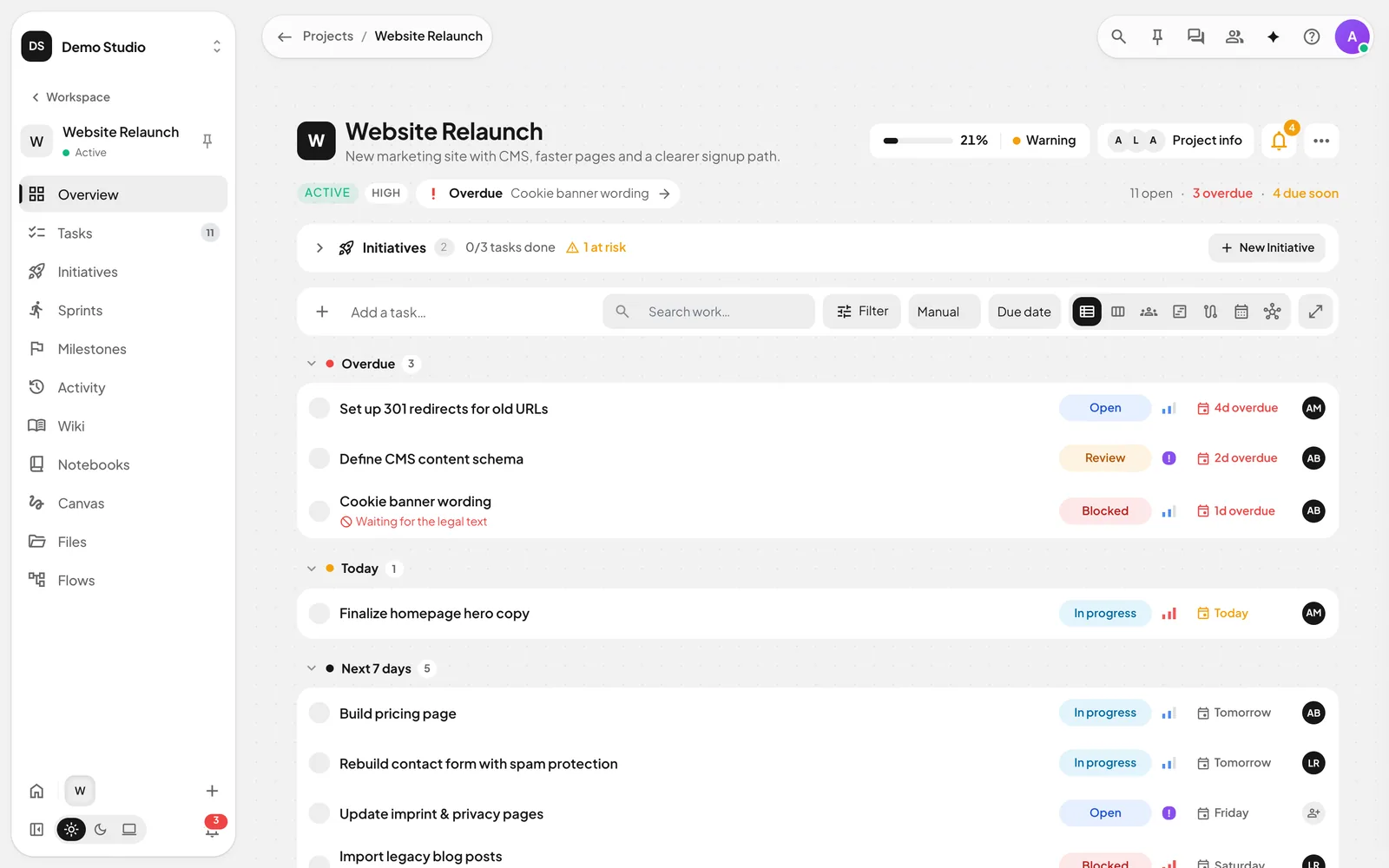
3Project overview
Project health
Completion and health of the project at a glance; click for the details behind it.
What needs attention
Points at the most pressing item, for example an overdue or blocked task, and jumps to it.
Initiatives
Group related tasks into initiatives and see their progress and risk.
Tasks by urgency
Tasks grouped into overdue, due soon and later, with status, priority, due date and assignee per row.
What you see in this view
Project health Completion and health of the project at a glance; click for the details behind it.
What needs attention Points at the most pressing item, for example an overdue or blocked task, and jumps to it.
Initiatives Group related tasks into initiatives and see their progress and risk.
Tasks by urgency Tasks grouped into overdue, due soon and later, with status, priority, due date and assignee per row.
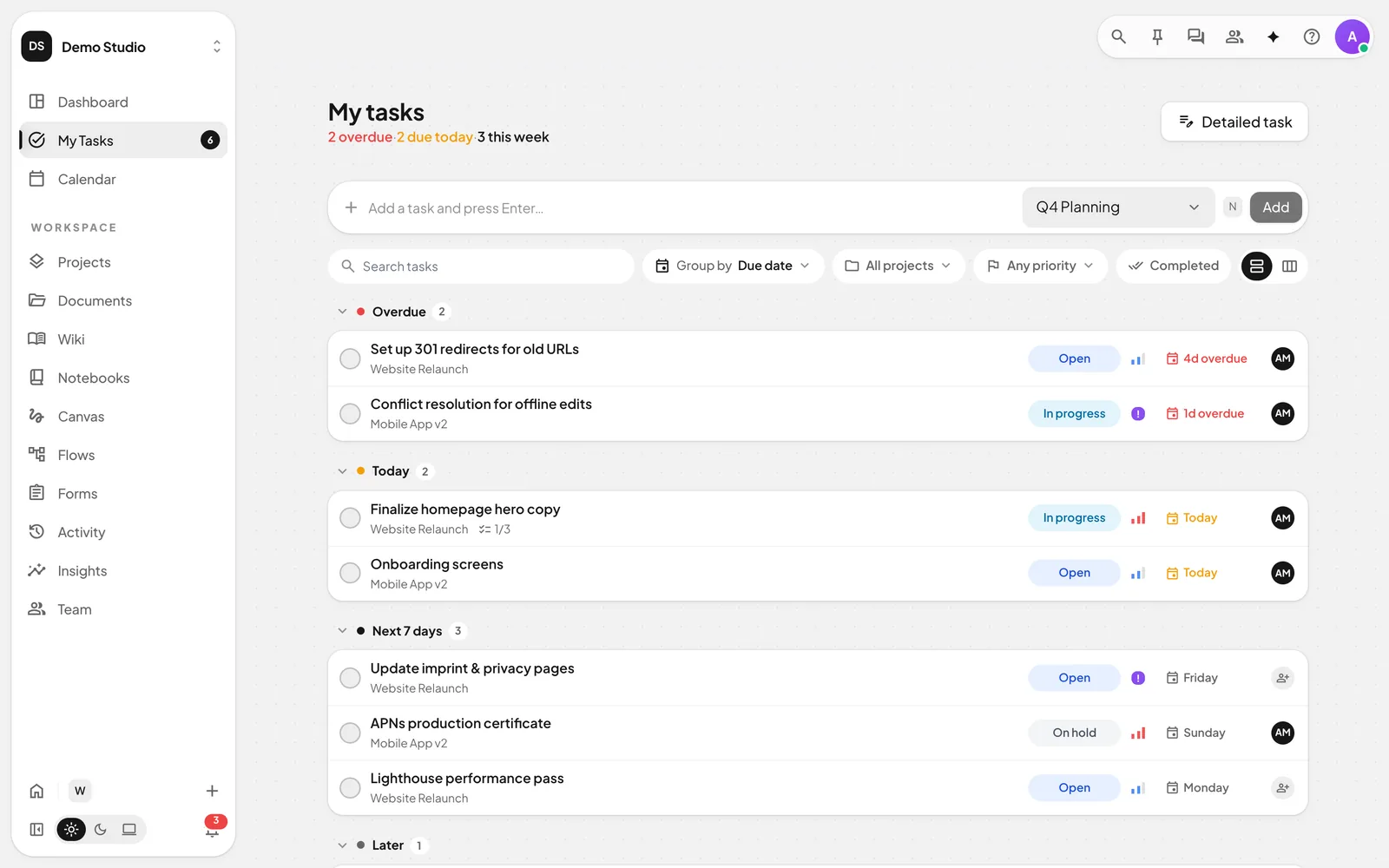
4My tasks
Quick add
Type a title, pick the project and press Enter to create a task.
Search, grouping, filters
Search your tasks, change the grouping and narrow them down by project.
Status
Change a task's status without opening it.
Due date
Shows when a task is due and how overdue it is; change it right in the row.
What you see in this view
Quick add Type a title, pick the project and press Enter to create a task.
Search, grouping, filters Search your tasks, change the grouping and narrow them down by project.
Status Change a task's status without opening it.
Due date Shows when a task is due and how overdue it is; change it right in the row.
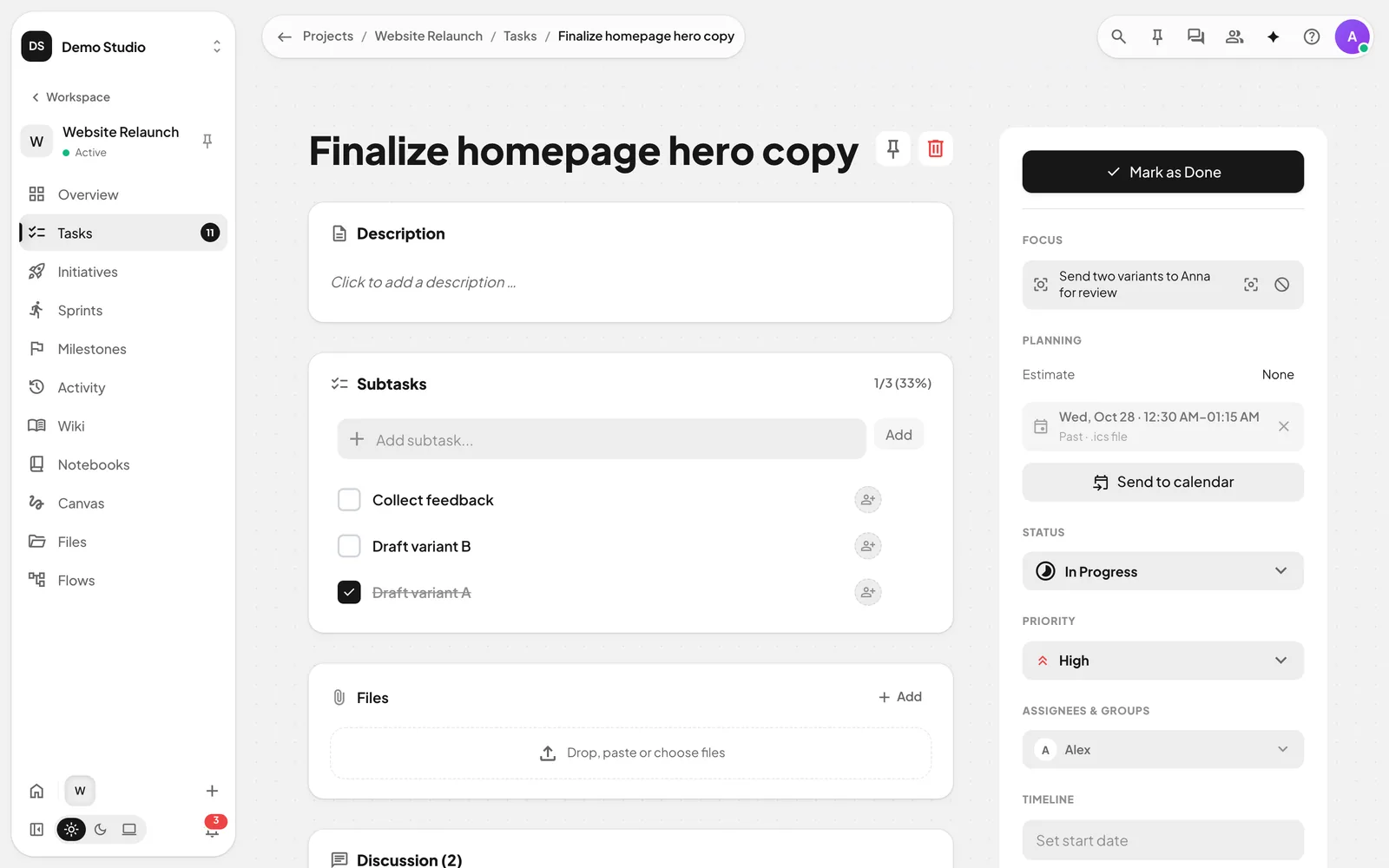
5Task
Description
Edit the description in place.
Subtasks
Break the task into steps and tick them off; each can have an assignee.
Status
Set where the task stands.
Assignee
Assign the task to a team member.
What you see in this view
Description Edit the description in place.
Subtasks Break the task into steps and tick them off; each can have an assignee.
Status Set where the task stands.
Assignee Assign the task to a team member.
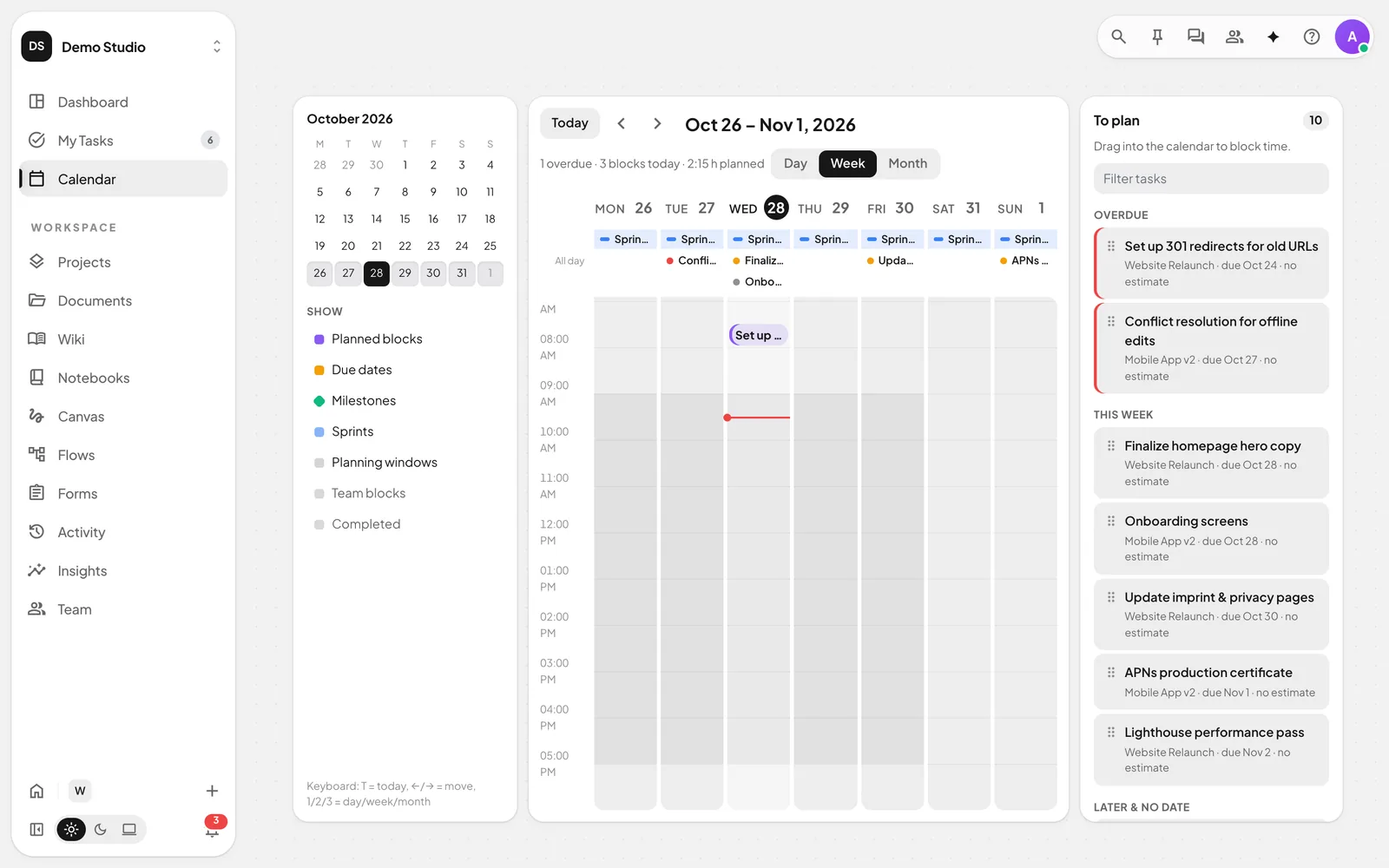
6Calendar
Layers
Switch planned blocks, due dates, milestones, sprints and team blocks on or off.
Day, week, month
Switch the view and see overdue tasks and planned hours of the period.
To plan
Open tasks you can drag into the calendar to block time for them.
What you see in this view
Layers Switch planned blocks, due dates, milestones, sprints and team blocks on or off.
Day, week, month Switch the view and see overdue tasks and planned hours of the period.
To plan Open tasks you can drag into the calendar to block time for them.